
Wednesday, May 23, 2012
How to Block Porn Adult Websites without using Software
Online porn is just increasing day by day, people are enjoying these stuff but still many parent's are little worried about their children getting evolved in all these activities in really early age. Well I remember that when I started browsing there were no restrictions as my parents were not knowing much about this internet but now parents are little aware about these stuff and they continuously trying to add some restriction in their children's daily internet browsing schedule.
Well I think restricting is not a good way to stop your children from browsing these kind of stuff but you need to have much more Intel on how these things can be taken down and may be stopped at some point.
Well these are many software's available that claims to work and they do work like I listened about the Net Nanny and many others but today I will show a manual and free way to block all the porn sites on any particular computer. This involves in changing the DNS to Open DNS that automatically blocks all the bad websites.
 Open Control Panel and click on Network and Sharing Center.
- Now on this page just click on the connection you are
 connected to and that will popup the dialog with many options.
- Now just click on the Properties Tab and you will see some options double click on
 the Internet Protocol version 4 and at the bottom choose Use the Following DNS Servers and add below DNS Server numbers to it.
208.67.222.123
208.67.220.123
 Now when you will add above DNS Server number it will look something like right image, so now this is it just click on Apply and OK.
- Now your DNS Servers are changed and now just try to open any adult website, it will be automatically blocked. And you will see message like below.
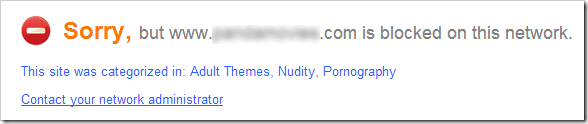 So now it not a full proof protection for your children's or your friends, but still if they do not know much about these technical stuff except opening Google and searching than it will work seriously fine. So do share your thoughts through below comments on how you like this post and share it will your friends too.
Open Control Panel and click on Network and Sharing Center.connected to and that will popup the dialog with many options.the Internet Protocol version 4 and at the bottom choose Use the Following DNS Servers and add below DNS Server numbers to it.208.67.220.123
Now when you will add above DNS Server number it will look something like right image, so now this is it just click on Apply and OK.
Sunday, May 20, 2012
How to Disable Dragging in Blogger Website
 Disabling Drag option can come handy when you want to protect your unique work from the robotic copiers and others whom you do not trust. So with this simple hack you can disable mouse dragging so person will not able to drag text and images on your website hence giving no chance for copying well he may get some alternate way to copy out the content but still this will l he may get some alternate way to copy out the content but still this will protect your blog in a great way and many of our readers may have seen this thing happen onHackingUniversity few days ago.So now if you are in need of applying this on your blog, well tut is below and can be followed easily.1. Go to Blogger.com and Sign in to your account, now choose your blog.2. Navigate to Template > Edit HTML Section and hit Proceed.3. Now press Ctrl + F to open the search feature and than search for <body tag.ondragstart='return false' onselectstart='return false'
 5. Now just click save template and click view Blog and check out if this small code is making wonders or not well it works perfect as I was using this same thing to protect my blog from scrappers but due to many request to disable it from my blog I did it now but it’s a great way to protect your blog so have fun :)4. Now you will see <body with a something more code after it so you have to paste the below code right after it which will make code look like in the image below.
Tuesday, May 15, 2012
How to Block Access to Certain Websites using Easy Tricks
Blocking access to some websites can be due to many reasons, from malware spreading sites to some sites exclusive popping up those porn sites. Well it's really important for you to know exactly how blocking works and how you can block online websites for security reasons. So I have gathered few easy trick which can help you in blocking your websites.
#1. Block Website's using Internet Explorer
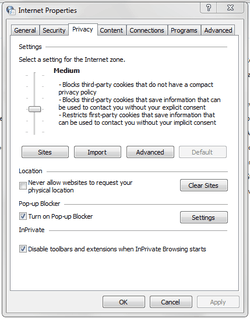 Internet option in your control panel provides you with options to extend your security and block access to certain websites. You can either slide the slider for automatic websites blocking according to their repo level or you can specify your websites manually.
- Open Control Panel > internet Options.
- Now switch to the Privacy Tab and you can slide the slider and read what exactly it does on that particular level, or you can click on the sites tab and mention sites manually.
- So now it even has many more options to tweak down you can check and use them too. So this is not a perfect option you can combine this with below step for more security.
#2. Block Website's using HOSTS File
First of all this is a difficult way but the best part is that it works on all browsers and all websites you mention in this file will not be accessible until you remove them.
- Open Notepad as an Administrator.
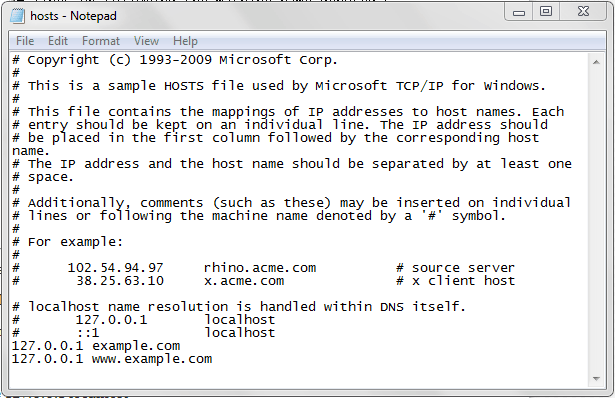
- Now navigate to C: > Windows > System32 > drivers > etc > HOSTS (make sure to choose show all files than you will see HOSTS File)
- Now just add any website at the bottom of this file with below prefix.
127.0.0.1 example.com
127.0.0.1 www.example.com - Now make sure you add
127.0.0.1in front of your website else it will not work. - Now you can add as many websites you want, or blocking some specific hardcore websites would be the perfect option.
#3. Blocking Porn Websites using DNS
Recently I have posted a simple tutorial on how you can block Porn and all those adult websites automatically by just changing out your DNS, so its pretty helpful for all those parents seeking out a for a solution and that too simple. [Check Here]
Saturday, May 12, 2012
Unlimited Free Facebook Access without Internet

Day by day many people are joining Facebook to connect with your family and friends who live far away from their home place, as Facebook is becoming the one social place for chatting, media sharing, commenting and distributing knowledge, its really important for every individual that he has access to his profile 24 hrs. where ever he is, with or without internet connection.
So getting popular day by day Facebook cannot loose its customer from anywhere so it has to bring some promotional tricks with which people will be engaged in using Facebook all the time. So to accomplish this thing Facebook has partnered with Fonetwish company to provide free Facebook access to all India users. So if you do not have Internet connection that also you can use Facebook with ease using your simple special message service.
So how it can be useful to you as you all have internet connection available but what if you have some phones coming from the old age and it does not support web browser or Wi-Fi connection well you can access Facebook on that too so quit impressive hmm. So if you like it check steps below to see it in action.
Update :
A small subscription fees of ` 1.00 is charged for unlimited per day access.
1. Access the Service :
Now if you want to use this you have to dial *325# which is taken from *fbk# short for Facebook, so after you dial this number a message will be promoted displaying the company providing you this free access.

2. Entering Username & Password :
After the message is promoted like above it will automatically be dismissed and you will another screen for entering your Username like above, now just enter your Username and than click Send or Reply in iPhone. After few seconds you will get another message to enter your Password for your Facebook account enter that password and you will have access to their free service.
3. Now Update your Statuses :
That’s it now every thing is configured and you will get some default commands which you can use to update your status and many other things on Facebook for free. So status updates in few seconds as it receives to the server.
4. Limitations :
This is like a promotional gift for all Indian Facebook users in collaboration with Fonetwish, well there’s no limitation on how status will be updated but limitation is that its currently available on Airtel, Aircel and Tata Docomo so other’s might get this service soon.
So here you go guys Unlimited Free Facebook Access for Indian users from Facebook in collaboration with Fonetwish. SO if you have any queries you wanna ask comment section is just below so have fun :) and make sure you share this post with all your friends.
Subscribe to:
Posts (Atom)